Does Terera need a graphics card?
No. Speech recognition runs on the computer’s processor, so a laptop without a graphics card is fine.
Guides · Getting started
Terera is a teleprompter for Windows and Mac that follows your voice word by word, with speech recognition running on your own computer. This guide starts with a ten-step setup for a hardware prompter, then covers your first read, the controls, the keys and what to do when something goes wrong.
For Windows and a beam-splitter prompter whose screen connects to the computer, such as the Elgato Prompter. Set Terera up on your main screen first, where you can see its controls.
If the window gets lost, left-click the Terera icon in the notification area at the right of the taskbar. Terera comes back as a normal window, 1220 by 820 pixels, centred, out of the overlay and with click-through off.
To install the voice engine later, open Settings, then Delivery, and choose Download voice engine (190 MB). If it fails, the button returns with an explanation; some workplace networks block the download, so try another network, and it resumes where it left off. To buy during the free trial, paste your key under Settings, then Activation.
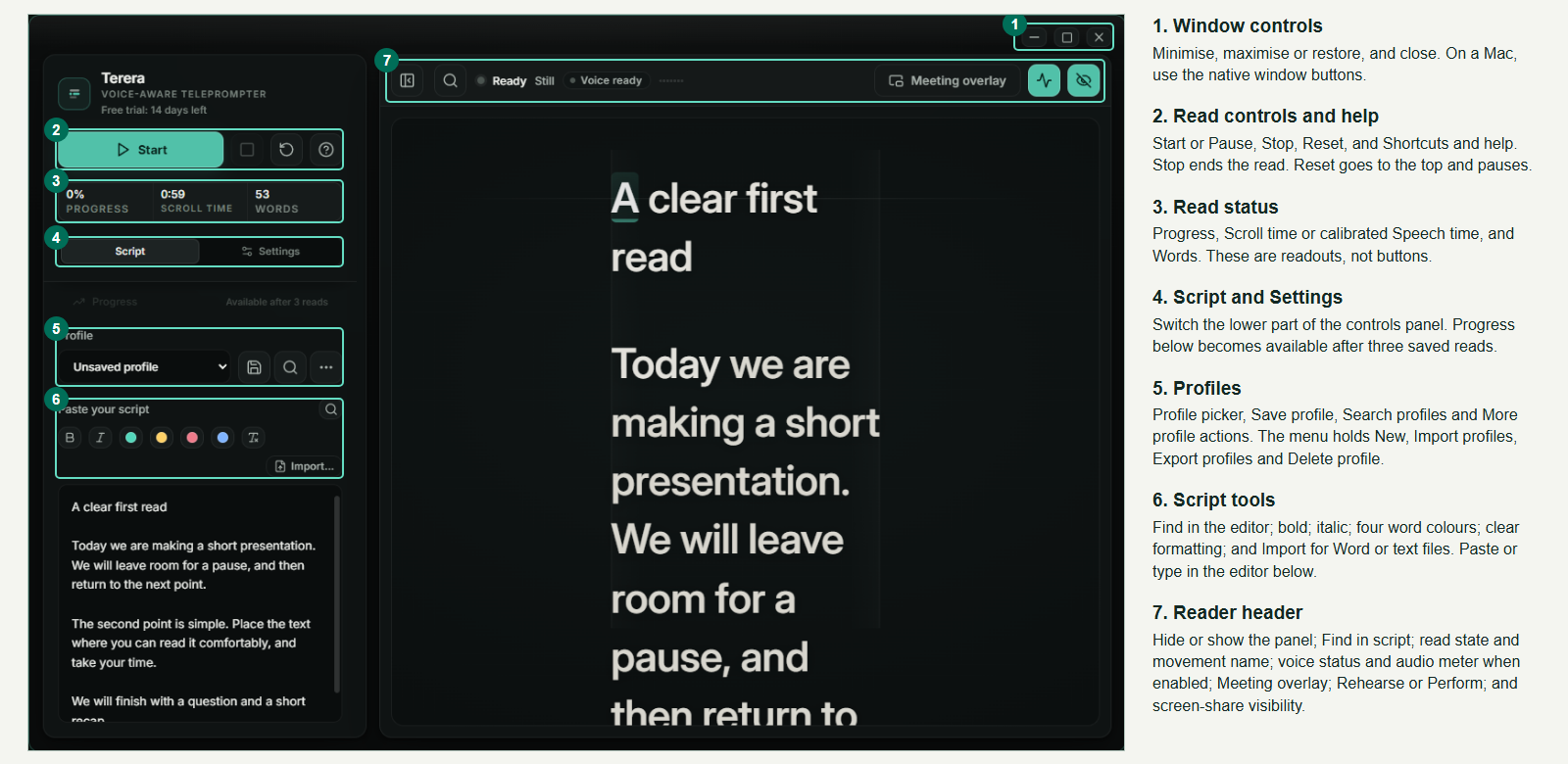
| Area | What it does |
|---|---|
| 1. Window controls | Minimise, maximise and close. Drag the top strip to move the window. |
| 2. Read controls | Start or Pause; Stop (square icon) ends the read; Reset (circular arrow) goes to the top. The question mark opens Shortcuts and help. |
| 3. Status | Progress, time and word count. |
| 4. Script and Settings | Switches the panel between your script and the settings. |
| 5. Profiles | Saves a script with its settings, to find later. |
| 6. Script tools | Find, bold, italic, word colours and Import…. |
| 7. Reader header | Hide the panel, find, Meeting overlay, Rehearse or Perform, and the eye icon for capture visibility. |
Script in. Paste into the script box, or choose Import… to open a Word (.docx), text (.txt) or Markdown (.md) file. Word files keep their bold, italics and colours. Save profile (the disk icon) keeps a script with its settings.
Voice or fixed speed. With Voice-aware pacing on, Terera follows your voice word by word and waits when you pause; choose your Microphone under Delivery. With it off, the script scrolls at Speed (8 to 92 px/s), and the arrow keys change Speed.
Plain keys work when you are not typing in the script box and no button or slider has focus. If a key does nothing, click the Progress readout, then try again. To fix a word while paused, double-click its paragraph, edit it, and press Ctrl+Enter or click away.
The practice window holds the controls panel. The meeting overlay fills one screen, stays on top, hides the panel and passes your clicks to the window beneath. It starts in Perform, with just your script.
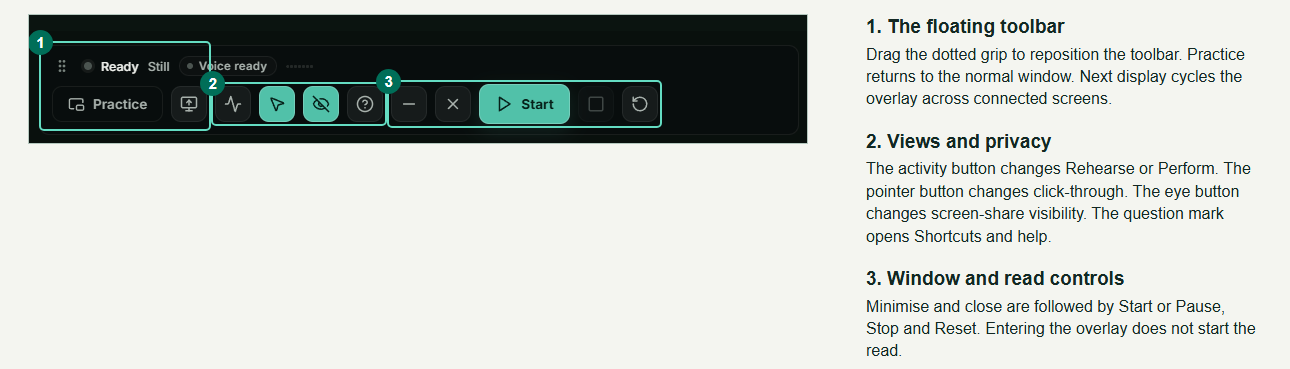
The overlay is see-through, so on a prompter use the practice window with the panel hidden, as in the quick start. Move it with Windows+Shift+Left Arrow or Right Arrow. On a Mac, the overlay leaves the Dock; Control+Option+M brings it back.
A presentation clicker moves a paragraph at a time if it sends Page Up and Page Down and Terera is the app in front. Many clickers send arrow keys instead, which change Speed, not your place, so choose one that sends Page Up and Page Down.
A Stream Deck can run Terera through its global keys, which work even when another app is in front. In the Stream Deck app, drag System, then Hotkey, onto a key and press the shortcut.
| Stream Deck key | Hotkey |
|---|---|
| Start or pause | Ctrl+Alt+Space |
| Next paragraph | Ctrl+Alt+Page Down |
| Previous paragraph | Ctrl+Alt+Page Up |
| Back to the top, paused | Ctrl+Alt+R |
| Freeze or carry on | Ctrl+Alt+F |
| Faster | Ctrl+Alt+Up |
| Slower | Ctrl+Alt+Down |
| Overlay on or off | Ctrl+Alt+M |
| Overlay to the next screen | Ctrl+Alt+D |
A wireless keyboard sends the same Ctrl+Alt keys from any app, and the plain keys (Space, Page Up, Page Down, R, F) with Terera in front.
Your voice may be all you need. With Voice-aware pacing on, Terera follows you, waits when you pause, and can move back when you read an earlier phrase again.
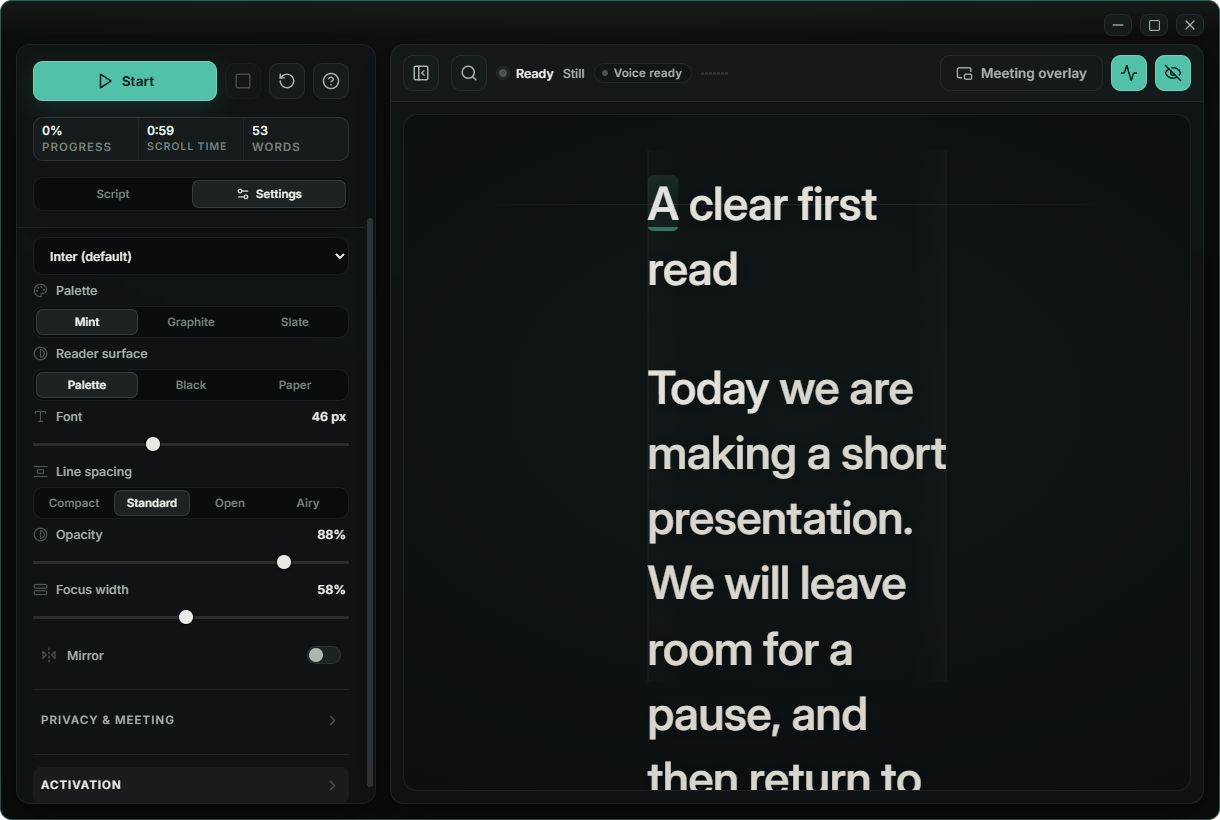
| Setting | Section | Default | What it does |
|---|---|---|---|
| Voice-aware pacing | Delivery | On | Follows your voice. Off, the script scrolls at Speed. |
| Countdown | Delivery | 3 s | Off, 3 s or 5 s before the read starts. |
| Natural gaze | Delivery | On | Moves the text around the screen for a natural look on calls. Turn it off on a prompter. |
| Audience | Delivery | 1:1 | 1:1, 2 people or 3 or more: how Natural gaze moves. Two people means two listeners, not two presenters. |
| Script placement | Delivery | Stations | Moving or Stations, shown for 2 people or 3 or more. With Natural gaze on, Stations holds the text at fixed spots (for 3 or more, with Dramatic scan or Meeting face scan). |
| Speed | Delivery | 28 px/s | The fixed scroll, 8 to 92 px/s. |
| Reader surface | Appearance | Palette | Palette, Black or Paper behind the text. |
| Font | Appearance | 46 px | Text size, 28 to 76 px. |
| Opacity | Appearance | 88% | How solid the text is. |
| Mirror | Appearance | Off | Flips the text left to right. |
| Hide from screen share | Privacy & meeting | On | Asks the system to keep Terera out of captures. |
| Click-through | Privacy & meeting | Off | Passes clicks to the window beneath. On in the overlay. |
On a Mac, many sharing tools capture Terera anyway. Screen-share hiding depends on the capture method your app uses, so check your sharing preview before a live call.
Shortcuts and help (the question-mark icon) lists the keys in use on your computer. If another app holds a key, Terera uses an alternative where it has one, and shows it there.
| Key | What it does |
|---|---|
| Space | Start or pause |
| Page Down / Page Up | Next paragraph / this or the previous paragraph |
| R | Back to the top, paused |
| F | Freeze or carry on |
| Up or Right / Down or Left | Speed up or down by 4 px/s; with Shift, by 10 |
| B | Hide or show the controls panel |
| M | Practice window or meeting overlay |
| D | Overlay to the next screen |
| P / G | Rehearse or Perform / Natural gaze on or off |
| Ctrl+F | Find in the script |
| Escape | Skip the countdown; then leave the overlay |
These work from any app.
| Action | Windows key |
|---|---|
| Start or pause | Ctrl+Alt+Space |
| Next or previous paragraph | Ctrl+Alt+Page Down / Ctrl+Alt+Page Up |
| Back to the top, paused | Ctrl+Alt+R |
| Freeze or carry on | Ctrl+Alt+F |
| Faster or slower (add Shift for bigger steps) | Ctrl+Alt+Up / Ctrl+Alt+Down |
| Practice window or meeting overlay | Ctrl+Alt+M |
| Overlay to the next screen | Ctrl+Alt+D |
| Natural gaze on or off | Ctrl+Alt+G |
| Click-through | Ctrl+Alt+C |
| Hide from screen share | Ctrl+Alt+Shift+S |
Screen-share hiding depends on the capture method your app uses, so check your sharing preview before a live call.
| On Windows | On a Mac |
|---|---|
| Ctrl+Alt+Space | Control+Option+Return |
| Any other Ctrl+Alt key | Control+Option with the same key, such as Control+Option+M |
| Ctrl+F | Command+F |
| Plain keys in Terera | The same |
Open Settings, then Appearance, and switch Mirror. Keep whichever reads correctly from the reading position.
Move the microphone closer or use a headset, and close heavy apps: speech recognition runs on the computer’s processor. Then resume on a clear phrase. If Terera still trails, press Page Down, or turn off Voice-aware pacing and set Speed.
Open Shortcuts and help: a key marked not registered is held by another app. For plain keys, bring Terera to the front and click the Progress readout. If the text is frozen, press F: paragraph jumps wait until you unfreeze.
Press R, or Ctrl+Alt+R from any app. The script returns to the top and pauses.
No. Speech recognition runs on the computer’s processor, so a laptop without a graphics card is fine.
Only to download Terera and its 190 MB voice engine, to activate a licence key the first time, and for an occasional licence check. The free trial starts without a connection, and voice following runs on your computer.
Yes, on macOS 15.5 or later, Apple silicon or Intel. The global keys use Control+Option in place of Ctrl+Alt, and Control+Option+Return starts or pauses.
English. With Voice-aware pacing off, a script in any language scrolls at a fixed speed.
Related guides: a teleprompter for Windows, a teleprompter for Mac and all guides.